Adding Annotations to Elements in the Diagram
You can create annotations for all model elements in a diagram. Those editing the diagrams use annotations to communicate with each other.
Essential Annotation Properties
Annotations are specific Innovator elements which can only be used for model elements within diagrams. You do not need access or write rights to create annotations.
Annotations
- Belong to a diagram
- Are unformatted text
- Require the Annotation privilege
- Can be edited and deleted by any user with the Annotation privilege
- Can also be edited with read-only rights
- Refer to one or more model elements
- Are primarily used for documenting review results
- Cannot be part of the documentation
Creating an Annotation
You can add annotations to each diagram element to communicate with other users editing the modeling process.
Annotations are based on comments that you may know from using Microsoft Word.
Text is inputted for annotations in the Annotations diagram area.
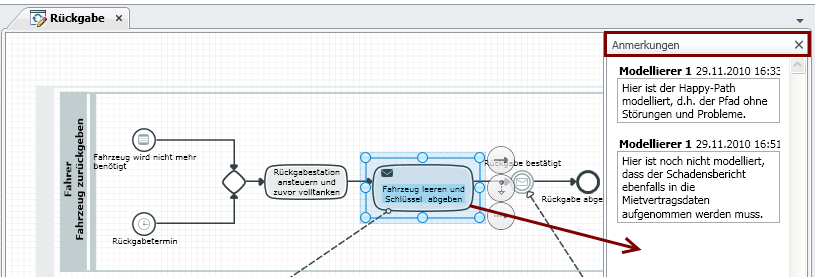
You can use the clipboard text to add an annotation.
Annotations can be permanently deleted.
You cannot link more than 15 elements with an annotation.
- Select Annotations to open the Annotations diagram area.
- Select the diagram elements that you want to add annotations to.
- Select New Annotation in the context menu or drag the selected element and drop it in the open Annotations diagram area.
The annotation is created and can be seen along with information about which user wrote it and a timestamp.
- Click in the annotation and enter your text.
The annotation is automatically saved.
Linking an Annotation with Diagram Elements
Open diagram with diagram elements and the New Annotation diagram area is open and annotations exist.
You can link an annotation with other diagram elements at a later stage.
- Select the diagram element that you want to add an annotation to.
- Drag the diagram element to the annotation to be linked.
The diagram element is linked with the annotation.
Deleting Annotations
You can permanently and irrevocably delete an annotation.
- Select the annotation which you want to delete.
- Select Delete Annotation in the context menu.
The Delete from Model dialog appears.
- Confirm deletion of the annotation by clicking onDelete from Model.
The annotation is permanently and irrevocably deleted from the model.